



A QuickBooks company file contains all the financial data of your organization. If due to any reason, this file gets corrupted or damaged, you may face various errors. To resolve such errors, you need to repair the QBW file. You can restore the company file from backup, but if the backup is not available, then you can use the QuickBooks File Doctor tool, recommended by Intuit.
For successfully repairing the corrupt company file using File Doctor tool and for better results, it is important to know how to use this tool efficiently. In this article, you will learn how to download, install, and use the QuickBooks File Doctor tool. Additionally, you’ll find about a reliable QuickBooks repair tool that can be helpful if this tool stops working or fails to repair the company file.
About QuickBooks File Doctor Tool
QuickBooks File Doctor is one of the repair tools introduced by Intuit to fix network issues, corruption in company file, and various other errors. Some facts about the tool are:
- To use the tool, you need to download QuickBooks Tool Hub
- Resolves data integrity issues in QuickBooks company file
- Fix the network-related issues that you may encounter while accessing QBW in multi-user environment
- You need to have QuickBooks admin credentials to use this tool
- The QuickBooks company file should not go beyond 2 GB
- The QuickBooks tool hub should be on updated version
- It works only on Windows
QuickBooks File Doctor Tool Download and Installation Steps:
- Download the advanced version of QuickBooks Tool Hub.
- Go to the Downloads and open the downloaded exe
- The installation window is displayed. Click the Install It will start the installation process.
- Once the process is completed, click on the Finish
- Next, click on the QuickBooks Tool Hubicon to launch/open the tool to use the QuickBooks File Doctor tool.
Steps to use QuickBooks File Doctor Tool to Repair QBW File
- Open the QuickBooks Tool Hub.
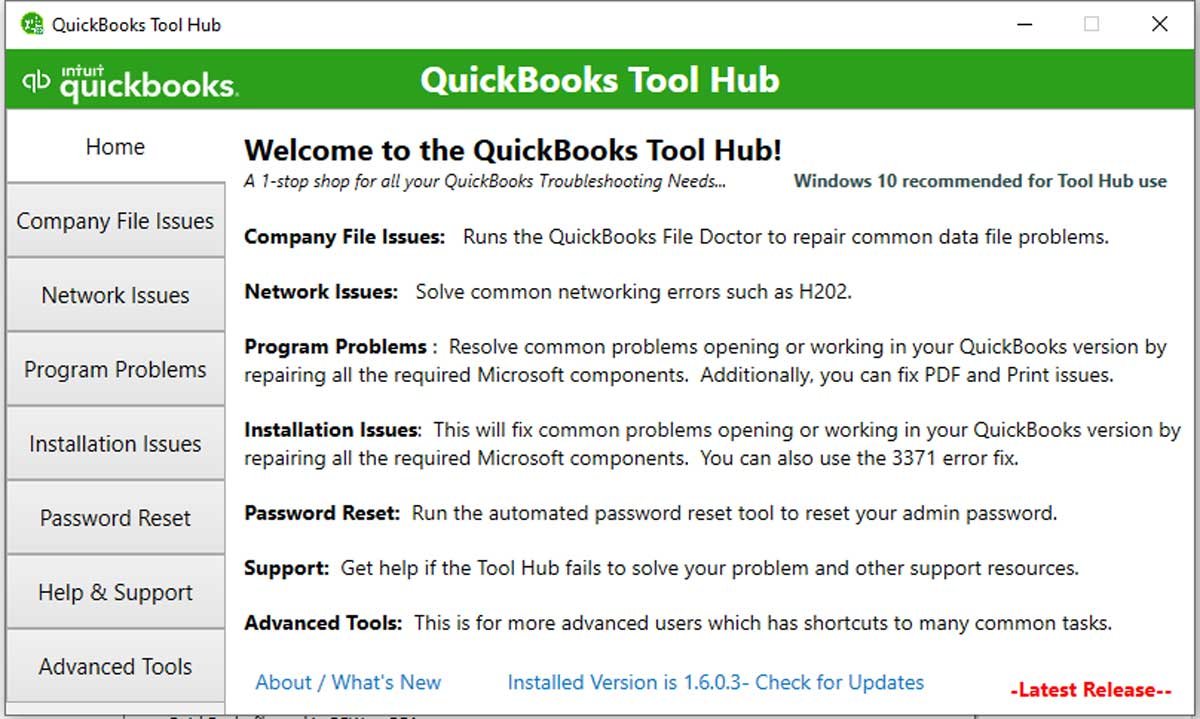
- On the tool hub, click Company File Issuesunder
- Next, click Run QuickBooks File Doctor. It may take a few minutes to open.
- Once it opens, click on the Browse option to search for the QuickBooks Desktop File.
- Under the search box, you will see the following three options:
- Check your file and network.
- Check your file.
- Check your network.
- Select the middle option – Check your fileand then Continue.
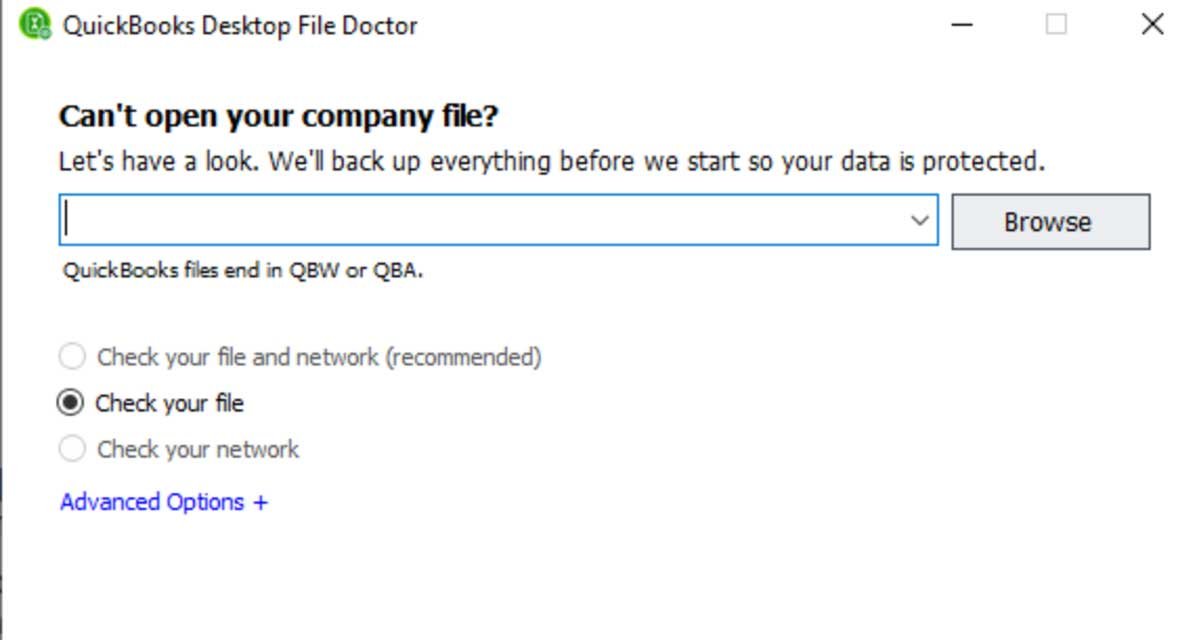
- Enter the QuickBooks admin credentials and then click
Now, the tool will start scanning and repairing the selected company file. It may take some time. Usually, the time varies with the size of company file that you’re trying to repair.
QuickBooks File Doctor Tool – Challenges and Issues
This tool can help repair the company file, but it has some limitations due to which you may face challenges while using it. These include:
- It may fail to respond if the company file is more than 2 GB.
- To upload a company file to the tool, an internet connection is required.
- You require admin credentials.
- It may fail to respond in case of large-sized highly corrupted company file.
What to do if the QuickBooks File Doctor Tool Fails?
This tool may not resolve every type of company file corruption issue and can fail to respond, especially if the file is severely corrupted or is of large size. In such cases, when the utility cannot repair the company file, then you can use a professional QuickBooks repair tool – Stellar Repair for QuickBooks. It can repair QuickBooks company files of any size or in any condition, providing an optimal solution when the file doctor tool does not work.
To learn how to repair QuickBooks company file using Stellar Repair for QuickBooks, watch the video.
Stellar Repair for QuickBooks vs QuickBooks File Doctor Tool
The table below provides comparison between QuickBooks File Doctor Tool and Stellar Repair for QuickBooks:
| Features | Stellar Repair for QuickBooks | QuickBooks File Doctor Tool |
| Repair Capability | Repair severely corrupted QuickBooks company files | Limited to fix only minor corruption in QuickBooks company files |
| Recovery | Recover all the data from corrupted QuickBooks company file | No guarantee of complete data recovery from QuickBooks company file |
| Repair Support | Repair both QBW and QBB files | Cannot repair QBB files |
| Preview Feature | Provide preview of recovered data before saving | No preview option is available |
| File Size Limitation | No file-size limitations. Can seamlessly handle large-sized company files | File size limitations – usually crash when repairing large-sized company files |
Conclusion
Above, we discussed about QuickBooks File Doctor Tool and how to use it efficiently to repair company (QBW) file. No doubt, it’s free to use, but it has some limitations like it usually crashes when you try to repair large-sized, severely corrupted QBW file. To overcome these limitations, you can opt for an alternative QuickBooks repair tool – Stellar Repair for QuickBooks. This DIY tool can repair the QBW file and QBB file without data loss and in just a few easy-to-follow steps.